When search engine bots visit your website, the very first file they request isn’t your homepage or your high-priority landing pages. It is a simple, plain-text document sitting in your root directory: the robots.txt file.
For many site owners, robots.txt is treated as a set-and-forget file. But in technical SEO, it acts as the main gatekeeper of your site’s crawl architecture. A single misplaced character or wild card rule can quietly block search engine crawlers from reading your core content, destroying your organic visibility overnight.
If implemented strategically, a clean robots.txt file saves server bandwidth, protects your crawl budget (the rate and limit at which search engine bots crawl your pages), and keeps search bots away from junk parameter URLs.
In this guide, we will break down how robots.txt works from basic syntax rules to advanced path precedence. So you can guide search bots effectively without risking accidental de-indexation.
What Is Robots.txt? (The Front Door to Your Website)
A robots.txt file is a plain text file placed in the root directory of your website (e.g., https://example.com/robots.txt. It utilizes the Robots Exclusion Standard to communicate directly with automated web crawlers (often called robots, bots, or spiders).
When a search engine bot like Googlebot prepares to explore your domain, it requests your robots.txt file first. The directives inside tell the bot which paths on your server it is allowed or forbidden to crawl.
The Critical Distinction: Crawling Directives vs. Indexing Directives
One of the most common and dangerous misconceptions in technical SEO is assuming that blocking a page in robots.txt prevents Google from indexing it.
It does not. Robots.txt is a crawling directive, not an indexing directive.
Crawling (What Robots.txt Controls): Fetching and reading the raw server data, HTML code, and visual assets of a page. If a URL is set to
Disallow:inrobots.txt, Googlebot will not request or download the page’s contents.Indexing (What Robots.txt Does NOT Control): Adding a URL into Google’s searchable database.
Why Blocked Pages Still Appear in Search Results
If an external website links to a URL that you have blocked in your robots.txt, Googlebot will follow that external link, see the Disallow: rule, and refrain from crawling the content.
However, because Google sees the external link anchor text, it still knows the URL exists. Google can and often will index the empty URL based purely on external signals.
In Google’s search results, these pages appear with a generic snippet stating: “No information is available for this page.”
If your objective is to completely keep a page out of Google’s search index, do not use robots.txt alone. You must allow Googlebot to crawl the page so it can read a noindex directive (via a <meta name="robots" content="noindex"> tag or an X-Robots-Tag HTTP header).
Now that you understand the fundamental difference between crawling and indexing, let me break down the exact code syntax search bots use to parse your rules.
How Robots.txt Works (Syntax, Parsing Rules, and Googlebot Logic)
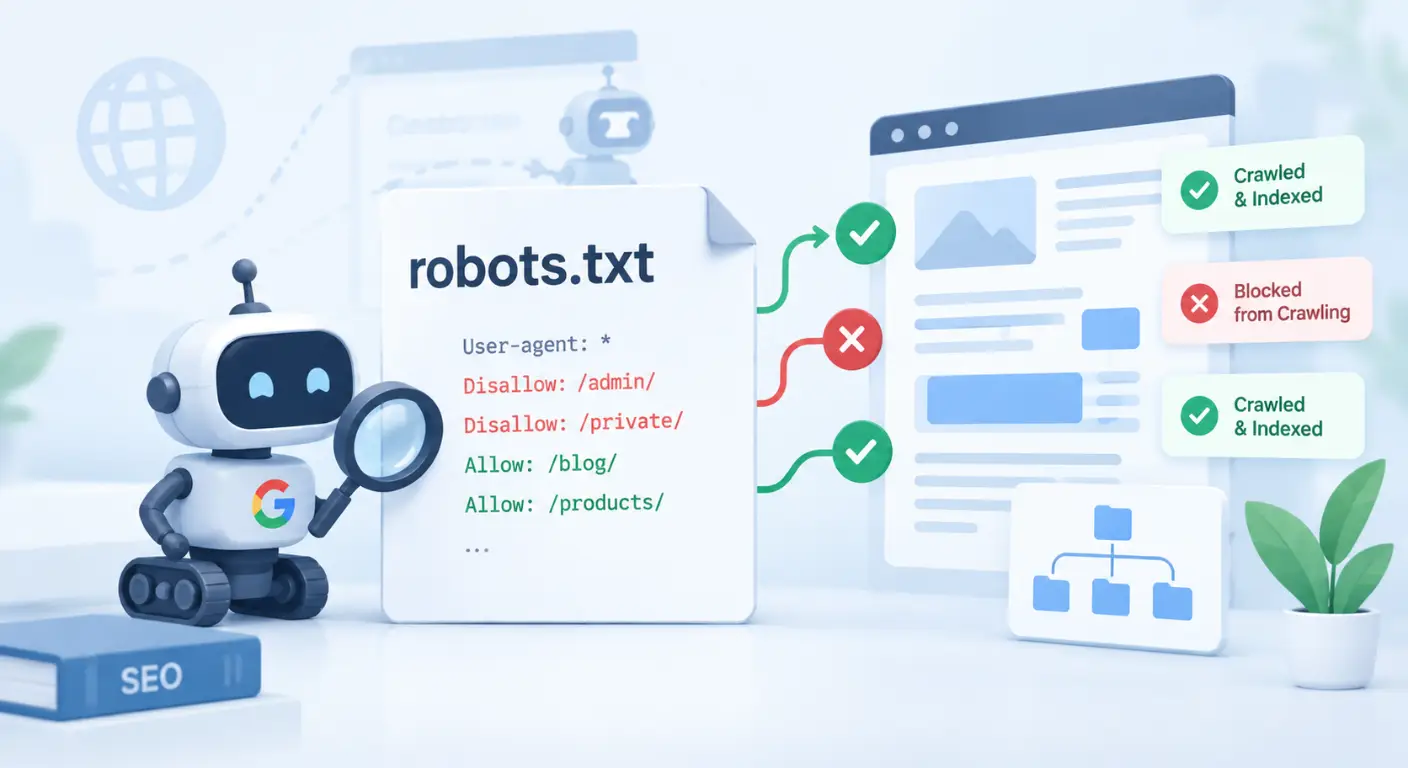
To manage your crawling rules effectively, you need to speak the language of search engine parsers. A standard robots.txt file consists of structured directive blocks. Each block starts by defining a target crawler, followed by specific instructions on which directories or patterns to allow or disallow.
Core Directives: User-agent, Disallow, and Allow
The foundation of every robots.txt file relies on three core directives:
User-agent:(Who does this rule apply to?) This line specifies the exact search engine crawler you are addressing. You can target all automated bots at once using a wildcard asterisk (*), or target specific crawlers individually.User-agent: *(Applies to all compliant web crawlers)User-agent: Googlebot(Applies strictly to Google’s main search web crawler)User-agent: Bingbot(Applies strictly to Microsoft Bing’s crawler)
Disallow:(What paths are forbidden?) This directive tells the specifiedUser-agentwhich directory paths or URL structures it must NOT crawl.Disallow: /checkout/(Blocks any URL starting with/checkout/)Disallow: /(Blocks the entire site from being crawled)
Allow:(What exceptions exist within forbidden paths?) Used primarily to grant access to a specific subfolder or file that sits inside a broaderDisallow:directory.Disallow: /media/Allow: /media/public-brochure.pdf
Syntax Breakdown Example:
User-agent: Googlebot
Disallow: /admin/
Disallow: /private/
Allow: /private/public-report.html
In this example, Googlebot is blocked from crawling anything inside /admin/ and /private/, except for the single /private/public-report.html file.
Path Precedence: How Googlebot Resolves Conflicting Allow/Disallow Rules
What happens when an Allow: directive and a Disallow: directive conflict with each other for the exact same URL?
For example:
User-agent: Googlebot
Allow: /folder/
Disallow: /folder/page.html
Which rule wins?
According to Google’s official Robots Exclusion Protocol specification, Googlebot resolves conflicts based on path length matching rather than line order.
The Length-Matching Rule:
When resolving conflicting directives, search engine parsers evaluate the number of characters in the path parameter. The directive with the most specific (longest) character length always takes precedence.
Precedence Examples:
Scenario 1:
Disallow: /page(5 characters)Allow: /page.html(10 characters)Outcome: Googlebot ALLOWS
/page.htmlbecause theAllowstring is longer and more specific.
Scenario 2 (Equal Character Lengths):
Disallow: /cat/(5 characters)Allow: /cat/(5 characters)Outcome: If character lengths are identical, the
Allowdirective wins in Googlebot’s parser.
Advanced Matching: Wildcards (*) and End-of-String Anchors ($)
Standard path matching checks if a URL starts with a given string. To handle dynamic URL patterns, search parameters, or specific file types, you must use regular expression wildcards.
1. The Asterisk Wildcard (*)
The * symbol matches any sequence of zero or more characters. It allows you to block dynamic query strings, search parameter pages, or internal site searches regardless of where they appear in the URL.
# Block all internal search result pages containing '?s='
Disallow: /*?s=

# Block all PDF files across your entire domain
Disallow: /*.pdf$
2. The End-of-String Anchor ($)
By default, robots.txt directives automatically append an implicit wildcard to the end of every path rule (e.g., Disallow: /test blocks /test, /testing, and /test/page.html).
The $ symbol explicitly locks the path matching to the exact end of the URL string.
# Disallows ONLY URLs ending exactly with '.php'
Disallow: /*.php$
How $ Prevents Unintended Blocking:
Rule:
Disallow: /file.php$Result for
https://example.com/file.php──> BLOCKEDResult for
https://example.com/file.php?user=123──> ALLOWED (Because the URL does not end at.php).
The Sitemap Directive: Helping Crawlers Discover Architecture
While most directives tell crawlers where not to go, the Sitemap: directive provides a direct road map to your high-priority, indexable URLs.
Sitemap: https://example.com/sitemap_index.xml
Best Practices for the Sitemap Directive:
Absolute URLs Only: Always use the full protocol and domain (e.g.,
https://example.com/sitemap.xml), never relative paths (e.g.,/sitemap.xml).Placement Location: Place
Sitemap:lines at the top or bottom of yourrobots.txtfile outside of any specificUser-agent:block so all compliant search engine bots can read them.Multiple Sitemaps Support: If you have multiple XML sitemaps or a sitemap index file, you can list multiple
Sitemap:directives sequentially:
Sitemap: https://example.com/sitemap-posts.xml
Sitemap: https://example.com/sitemap-pages.xml
Sitemap: https://example.com/sitemap-products.xml
Now that you know how search engines read your rules, let’s explore how to use these directives to optimize your site’s crawl budget without accidentally blocking critical resources.
Strategic Crawl Budget Management: What to Block (and What to NEVER Block)
Search engine crawlers do not have infinite time or resources to spend on your website. Googlebot assigns your domain a Crawl Budget, a combination of how fast your server responds (Crawl Rate Limit) and how valuable Google deems your URLs (Crawl Demand).
If Googlebot spends its allocated crawl budget fetching thousands of useless parameter URLs, internal search results, or staging paths, it will crawl your high-value money pages less frequently.
The primary goal of robots.txt in crawl budget optimization is simple: Direct crawlers toward unique, valuable content while blocking low-value, duplicate, or administrative paths.
High-Value Targets for Disallow Rules
Not every unindexed page requires a robots.txt disallow rule. However, for large websites, SaaS platforms, and e-commerce stores, certain URL patterns generate infinite crawl paths that must be blocked at the robot level.
1. Internal Search Result Pages (/search?q=)
Allowing search engines to crawl your internal search results creates an infinite number of indexable URLs. Spammers can use your internal site search to generate thousands of toxic query pages, leading to severe algorithmic spam penalties.
# Block internal search query paths
Disallow: /search/
Disallow: /*?s=
Disallow: /*?q=
2. E-Commerce Facets, Sorting Filters, and Tracking Parameters
E-commerce stores often generate dozens of duplicate URL variations for a single product grid using URL parameters (e.g., color, size, price sorting, or tracking tags like ?utm_source=, ?sort=price_asc, ?color=blue).
Unless these faceted pages are specifically targeted for long-tail keyword search intent, block them to prevent crawl budget waste.
# Block URL filtering and sorting parameters
Disallow: /*?sort=
Disallow: /*&order=
Disallow: /*?filter=
3. Administrative, Cart, and System Folders
Backend CMS directories, customer account dashboards, and shopping carts should never consume crawl resources or appear in search engine queries.
# Block CMS admin and checkout infrastructure
Disallow: /wp-admin/
Disallow: /cart/
Disallow: /checkout/
Disallow: /my-account/
The Modern Rendering Pitfall: Why Blocking CSS and JavaScript Damages Rankings
In the early days of SEO, webmasters routinely blocked /wp-content/, /assets/, /css/, and /js/ folders in robots.txt to save server bandwidth.
In modern technical SEO, this practice is extremely dangerous.
How Googlebot Sees a Blocked Page:
Modern search engines do not just read flat raw text HTML; they render your pages using a full headless Chrome browser engine (Google’s Web Rendering Service – WRS).
Googlebot needs to execute your CSS and JavaScript to determine:
Whether your website is mobile-responsive.
Where content is placed on the screen (above the fold vs. hidden below).
Whether main content is injected dynamically via client-side JavaScript.
The Ranking Risk:
If your robots.txt blocks Googlebot from fetching CSS stylesheets or JavaScript files, Google cannot render the visual layout.
Google’s rendering engine will treat the page as broken or unformatted, frequently triggering “Mobile Usability” errors in Google Search Console and tanking your organic rankings.
Golden Rule for Modern Robots.txt:
Never block CSS, JavaScript, or image asset directories. Allow Googlebot full, uninhibited access to render your site exactly as a human user sees it.
Blocking the wrong technical file is risky, but accidentally blocking an entire site root can crash an entire business. Let’s look at a real-world disaster case study.
Real-World Case Study: The Accidental Slash (/) That De-indexed a Live Storefront
In technical SEO consultancy, few emergency calls are as stressful as an e-commerce client watching their organic traffic plunge to absolute zero overnight.
I once audited a growing WordPress custom storefront that experienced an immediate 95% drop in organic impressions right after launching a site redesign.
The Problem: A Staging Environment Directive Leak
During the pre-launch development phase, the client’s engineering team rightly wanted to prevent search engine bots from crawling and indexing their unreleased staging environment.
To protect the staging build, they added a blanket disallow rule inside the staging robots.txt file:
User-agent: *
Disallow: /
What That Rule Actually Means:
A single trailing forward slash (/) immediately following a Disallow: directive instructs search engine crawlers: “Do not crawl any page or path across this entire domain.”
When the development team pushed the staging code into the live production environment (example.com), they forgot to remove or update the staging robots.txt file.
The blanket Disallow: / rule went live on the primary domain.
The SEO Impact: Total Crawl Blockade
Immediate Crawl Cessation: The moment Googlebot re-crawled
robots.txt file, it encountered theDisallow: /instruction. Googlebot instantly aborted all scheduled crawls across the entire storefront.Cascading Drop in Indexation: Because Googlebot was barred from fetching any page HTML, internal links, or canonical signals, Google began purging the site’s pages from search results.
Loss of Revenue: Within three days, top-performing product pages and category hubs completely vanished from Google SERPs, causing massive daily revenue loss.
The Diagnostic & Recovery Workflow
When I was brought in to investigate the drop, the recovery required a swift, systematic technical workflow:
Step 1: Root Cause Isolation via Direct cURL Request
I bypassed browser caching by running a terminal header and text request directly against the root domain:
curl -s https://example.com/robots.txt
The output immediately returned the active staging blockade:
User-agent: *
Disallow: /
Step 2: Emergency Directive Replacement
I immediately updated the live robots.txt file to allow access to public paths while restricting only backend CMS routes:
User-agent: *
Allow: /
Disallow: /wp-admin/
Sitemap: https://example.com/sitemap_index.xml
Step 3: Clearing Google’s Cached Robots.txt
Search engines cache robots.txt files locally for up to 24 hours. Waiting a full day for a natural re-crawl was not an option for a revenue-generating storefront.
I accessed the client’s Google Search Console account.
Navigated to the Robots.txt Report tool.
Executed a live validation request, forcing Googlebot to immediately re-fetch and flush its cached
Disallow: /blockade.
Step 4: Accelerated Priority Re-crawling
Using GSC’s URL Inspection Tool, I manually submitted the homepage, primary category sitemaps, and core revenue-generating product URLs for priority re-indexing.
The Outcome:
Within 48 hours of flushing the cached robots.txt file, Googlebot resumed crawling the domain. Over the next 5 to 7 days, organic impressions, rankings, and indexation fully recovered to pre-launch levels.
Lesson from My Personal Experience:
Never push a staging build to a live production server without performing a strict pre-launch technical deployment audit. A single misplaced
/character in yourrobots.txtfile can completely neutralize months of SEO growth.
Knowing how to prevent disastrous blockades is critical, but choosing between robots.txt, noindex tags, and canonical directives requires a clear strategic matrix.
Robots.txt vs. Noindex vs. Canonical Tags (Decision Matrix)
One of the most frequent mistakes site owners make is choosing the wrong tool for URL control. Confusing crawling directives with indexing instructions leads to indexing bloat, canonical loops, and lost PageRank equity.
To make the right structural choice, use this simple decision matrix:
| Technical Feature | robots.txt (Disallow) | Meta Noindex Tag / Header | Canonical Tag (rel=”canonical”) |
| Primary SEO Purpose | Blocks search bots from crawling and fetching URL content. | Instructs search bots not to index a URL in search results. | Consolidates duplicate content and passes link equity to a primary URL. |
| Googlebot Action | Stops fetching page HTML completely. | Crawls page HTML, reads the tag, and drops page from index. | Crawls both pages and transfers ranking signals to the master page. |
| Passes Link Equity? | NO (Links inside blocked pages cannot be crawled). | NO (Eventually stops transferring link equity). | YES (Consolidates 100% of PageRank signals). |
| URL Hidden from SERPs? | NOT GUARANTEED (Can still show if linked externally). | YES (Guarantees removal from search index). | NO (Canonical target is indexed, duplicate is hidden). |
| Best Use Case | Facet filters, dynamic search queries, large admin routes. | Staging pages, private client dashboards, thank-you pages. | Duplicate product pages, syndicated content, HTTP/HTTPS variations. |
The Strategic Rule of Thumb:
Use
robots.txtwhen you have thousands of low-value parameter URLs that are wasting server resources and crawl budget.Use
noindexwhen you need to ensure a page never appears in search engine results (e.g., internal landing pages or thank-you pages). Remember: The page MUST be allowed inrobots.txtso Googlebot can crawl it and see thenoindextag.Use Canonical Tags when multiple URLs display nearly identical content and you want to pass all backlink authority to a single master URL.
Diagnostic Workflow: How to Test, Audit, and Validate Your Robots.txt
Publishing a robots.txt file without validating its syntax can lead to invisible ranking drops. A proper diagnostic workflow ensures that your directives perform exactly as intended.
Google Search Console Robots.txt Report & Live Validation
Google Search Console provides a dedicated Robots.txt Report that allows you to inspect the cached version of your file and request live updates.
Step-by-Step Validation Workflow:
Access the Tool: Open Google Search Console and navigate to Settings > Robots.txt.
Verify Cached Status: GSC will show you the exact date and time Googlebot last fetched your file, along with any syntax warnings or error lines detected.
Test Specific URLs: Use the URL Inspection Tool in GSC to test individual URLs. If a page is blocked, the tool will explicitly report: “Crawl allowed? No: blocked by robots.txt”.
Force a Live Fetch: Whenever you update your live
robots.txtfile, use the report tool to submit a live re-crawl request so Google updates its cached copy immediately.
Handling Server Errors: What Happens When Robots.txt Returns 5xx Status Codes
What happens if your server experiences a outage or returning server errors whenever Googlebot tries to fetch https://example.com/robots.txt?
According to Google’s official developer specifications, Googlebot handles HTTP status responses for robots.txt using a strict fail-safe logic:
1. Successful Responses (200 OK)
Googlebot parses the document syntax and strictly enforces all Allow: and Disallow: directives.
2. Missing File Responses (404 Not Found or 410 Gone)
If your server returns a 404 or 410 HTTP status code for robots.txt, Googlebot assumes your website does not have a robots.txt file. It will proceed to crawl every accessible URL across your entire site without restrictions.
3. Server Error Responses (5xx Internal Server Error)
If your server returns a 5xx error (e.g., 500 Internal Server Error, 502 Bad Gateway, or 503 Service Unavailable), Googlebot assumes the server is experiencing heavy load or downtime.
To avoid crashing your infrastructure, Googlebot will:
Temporarily halt all crawling across your domain.
Cache the
5xxerror state and retry fetchingrobots.txtperiodically.If the
5xxerror persists for more than 30 days, Googlebot will treat it as a404and resume crawling, but your indexation will suffer severe damage in the interim.
Ensure your CDN or host server serves
robots.txtas a static file or caches it at the edge layer so server crashes do not return5xxerrors to search engine bots.
Now that you know how search engines interpret server responses and directive rules, let’s address the most common high-intent questions SEOs ask about robots.txt.
Frequently Asked Questions (FAQs)
1. How to view and access a website’s robots.txt file?
To view any website’s robots.txt file, open your web browser and append /robots.txt to the root domain URL (for example, https://example.com/robots.txt. Because the file is stored directly in the server’s public root directory, it is publicly accessible to any browser or automated web crawler unless blocked by server-level security rules.
2. What should a standard SEO robots.txt file look like?
A clean, SEO-friendly robots.txt file should grant access to search crawlers, block private admin routes, and link directly to your XML sitemap. A standard baseline structure looks like this:
User-agent: *
Allow: /
Disallow: /wp-admin/
Disallow: /checkout/
Disallow: /cart/

Sitemap: https://example.com/sitemap_index.xml
3. How do you attach or upload a robots.txt file to a website?
To attach a robots.txt file to your website, save your directive rules as a plain UTF-8 text file named robots.txt and upload it directly to your site’s root directory (typically /public_html/ or /www/) using SFTP or a File Manager. If you use a Content Management System like WordPress or Shopify, you can also manage and attach your robots.txt dynamically using SEO plugins like Yoast SEO or Rank Math.
4. How do you read and interpret robots.txt directives?
To read a robots.txt file, break it down by reading line-by-line from top to bottom:
User-agent:Identifies the target bot (e.g.,*for all bots,Googlebotfor Google).Disallow:Lists the URL paths or folders the targeted bot is forbidden from crawling.Allow:Specifies path exceptions that can be crawled inside an otherwise disallowed folder.Sitemap:Points crawlers directly to your XML sitemap location.
5. How long does it take for Google to recognize updates to a robots.txt file?
Googlebot usually caches and re-fetches a website’s robots.txt file every 24 hours. If you need Google to recognize critical updates immediately (for example, after removing an accidental crawl block), you can force a live re-crawl by submitting your updated file through the Google Search Console Robots.txt Report.
Final Thoughts
Your robots.txt file is the primary gatekeeper of your website’s crawl architecture. Rather than treating it as a static, set-and-forget file, use it as a strategic tool to eliminate crawl budget waste, prevent dynamic parameter bloat, and guide search engine bots toward your most valuable content.
By keeping asset directories (CSS and JS) unblocked, using explicit wildcards, and validating directive syntax through Search Console, you protect your domain’s organic foundation from accidental crawl blockades and indexing drops.
Is Your Site's Crawl Architecture Working For You or Against You?
A single unintended rule in your robots.txt file can silently blind search engines to your highest-value pages. Whether you are launching a new site structure, troubleshooting drop in indexation, or managing crawl efficiency at scale, we help you maintain total control over how bots interact with your site.
Fix Core Technical Blockades: Ensure your site’s rendering pipeline and crawl paths are bulletproof with our tailored Technical SEO Services.
Uncover Invisible Crawl Errors: Get a full, line-by-line inspection of your directives, parameter handling, and indexation signals through a detailed Website SEO Audit.
Have a specific robots.txt error or indexing drop to solve?
Schedule a Technical SEO Consultation, let’s inspect your server directives and restore full crawl efficiency.
Explore Other Articles Under Technical SEO Side
Pillar Blogs
What is Technical SEO? (Parent Blog)
- Crawlability and Indexability in SEO (Child Blog)