Most search visibility problems don’t happen because of what users see on a website. They happen because of what Googlebot fails to see behind the scenes.
A page can look completely fine to a human visitor. But if its main text or links are trapped behind heavy scripts, blocked by server rules, or skipped during crawling, Google simply treats that content as invisible.
To fix indexation issues, you have to stop looking at your site like a human user and start seeing it through Googlebot’s eyes. And this is a coomon saying ‘View as a Googlebot’.
What We’ll Cover in This Guide
- The Googlebot Fleet: How Googlebot Smartphone and specialized crawlers interact with your site.
- Raw HTML vs. Rendered DOM: Why JavaScript delays cause pages to quietly drop out of search results.
- The Search Console Inspection Workflow: How to use Live URL Testing to spot invisible rendering blocks.
- Security & Log Hygiene: How to verify real Googlebot traffic and block fake user-agent scrapers.
- Common Rendering Bottlenecks: Practical fixes for blocked CSS/JS files, hydration errors, and crawl traps.
Before we dive into the details, I’d like to first familiarize you with the Googlebot family.
The Googlebot Family: Who Is Visiting Your Site?
Googlebot isn’t just one single program. It’s a team of automated software bots sent by Google to discover, download, and read your web pages.
Different bots handle different jobs on your site. Knowing who is visiting helps you read your server logs correctly and catch hidden technical errors.
- Googlebot Smartphone (The Primary Crawler) Google evaluates almost every website on the internet using Mobile-First Indexing. This means Googlebot Smartphone is the main bot visiting your pages.
- How it works: It acts just like a mobile phone browser, checking how your site loads on smaller screens.
- Common Trap: If your website hides content, main navigation links, or structured data on mobile devices even if it shows up perfectly on desktop, Googlebot simply won’t see it or rank it.
- Googlebot Desktop & Specialized Bots While the smartphone bot does 99% of the heavy lifting, secondary bots handle specific tasks:
- Googlebot Desktop: Re-checks desktop-specific setups, old site structures, or desktop sitemaps.
- Googlebot Image & Video: Specialized bots that specifically scan your media files, images, and embedded videos.
- AdsBot-Google: Checks your landing pages if you run Google Ads (this bot checks quality for ads and doesn’t affect your organic SEO).
- Bot Signatures: Checking Your Server Logs When Googlebot visits your site, it leaves a digital footprint called a User-Agent string in your server logs. This tells your server exactly who is making the request:
- Googlebot Smartphone Sign-off: Mozilla/5.0 (Linux; Android 6.0.1; Nexus 5X Build/MMB29P) AppleWebKit/537.36 (KHTML, like Gecko) Chrome/W.X.Y.Z Mobile Safari/537.36 (compatible; Googlebot/2.1; +(http://www.google.com/bot.html)
- Googlebot Desktop Sign-off: Mozilla/5.0 (compatible; Googlebot/2.1; +(http://www.google.com/bot.html)
Knowing which crawler is knocking on your server door is only half the battle; the real diagnostic challenge begins when Googlebot tries to assemble and process the actual code it fetches.
Raw HTML vs. Rendered DOM: How Google Actually Sees Your Page
To understand why some pages get delayed in indexation, you first need to understand the difference between what your server sends and what Googlebot actually processes.
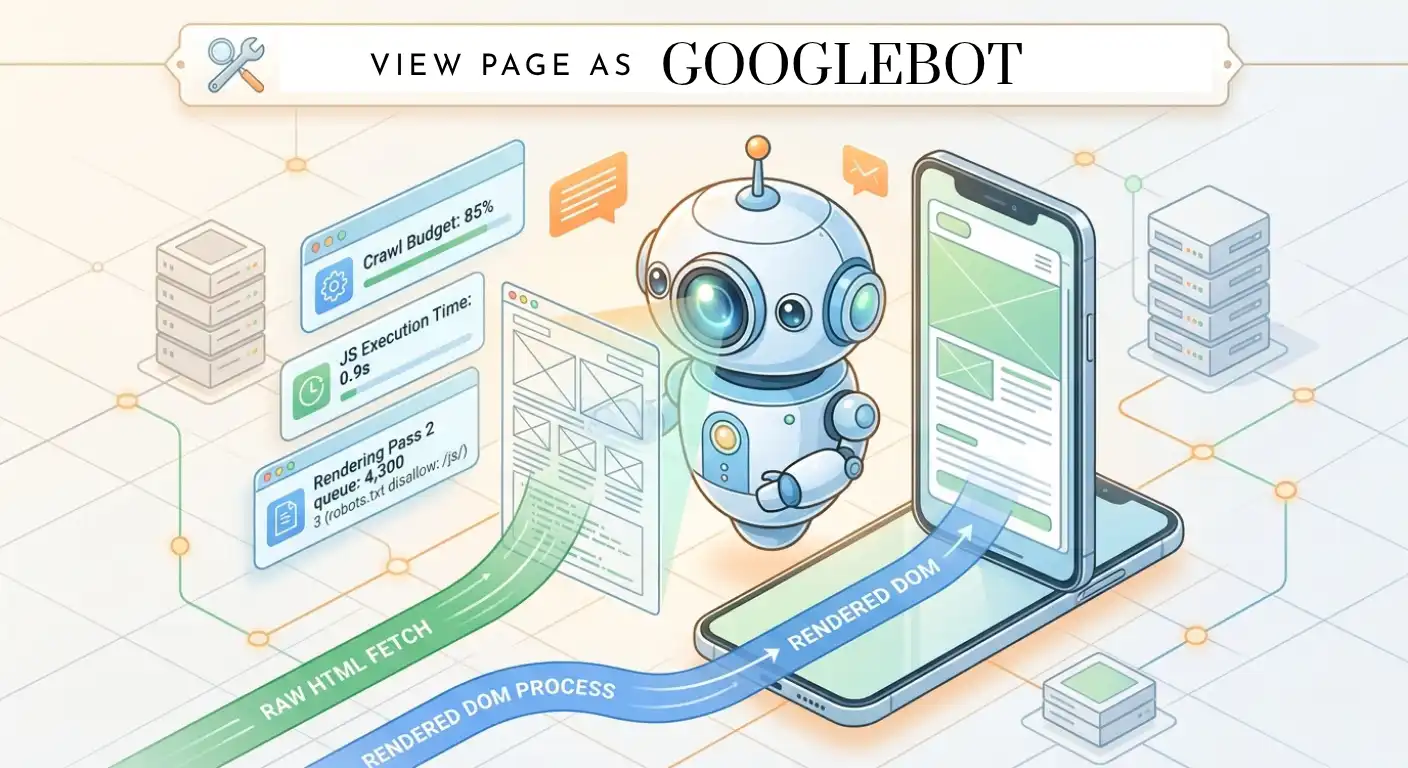
When a regular user visits your website, their browser downloads the initial code and immediately builds the full page for them. Googlebot, however, handles pages in two distinct stages (a process known as Two-Pass Indexing).
Stage 1: The Initial Fetch (Raw HTML)
When Googlebot first requests your URL, it quickly downloads the Raw HTML: the original source code delivered directly from your server.
- What happens: Googlebot scans this initial code for your title tags, meta descriptions, primary text, and standard HTML links.
- The Reality: If your site relies heavily on client-side JavaScript (like React, Angular, or Vue) to load content, Googlebot will see a mostly blank page during this first pass.
Stage 2: The Web Rendering Service (Rendered DOM)
If Googlebot detects that important content depends on JavaScript, it sends your URL to a secondary processing queue called the Web Rendering Service (WRS).
- What happens: The WRS acts like a head-less browser. It downloads your JS files, executes the scripts, and builds the final visual page structure (the Rendered DOM).
- The Practical Issue: Running JavaScript at scale requires massive computing power. Because of this, Stage 2 does not always happen immediately. It can take hours or even days for Googlebot to complete rendering and see your full content.
View Source vs. Inspect Element: How to Test Your Page
You can easily check this difference on your own site using your standard desktop browser:
- Right-Click -> “View Page Source”: This shows your Raw HTML (Stage 1). If your main content or internal links are missing here, your indexation relies entirely on Google’s second pass.
- Right-Click -> “Inspect”: This shows the live Rendered DOM (Stage 2) after JavaScript has executed.
Key Takeaway: If your primary content only appears in the Rendered DOM and not in the Raw HTML, any script error or rendering delay will directly impact how quickly and accurately Google indexes your page.
Understanding how Googlebot processes your code in theory is helpful, but the real diagnostic work happens when you test your live pages in real time.
How to Simulate & Test Googlebot (Using Search Console)
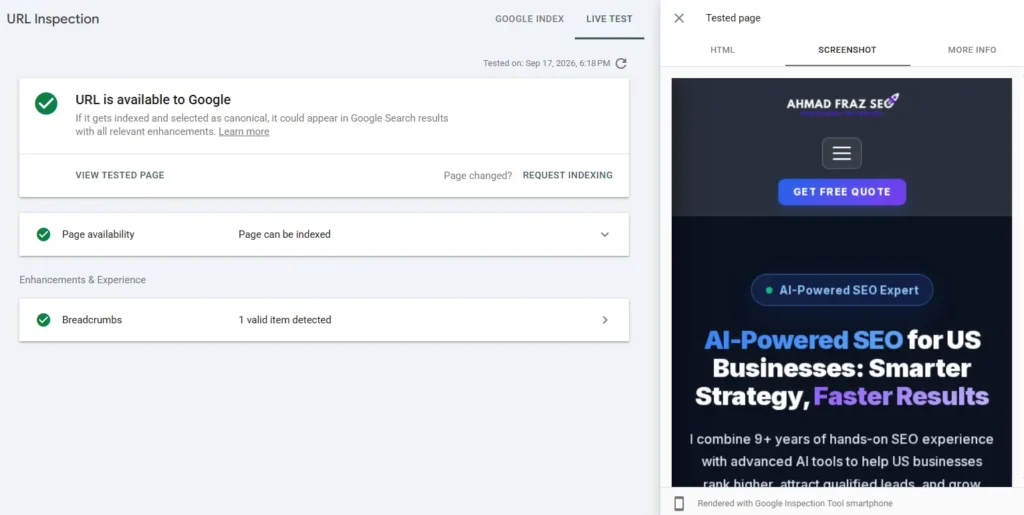
To troubleshoot crawling and rendering issues effectively, you don’t need expensive third-party tools. Google provides direct access to its rendering engine through Google Search Console (GSC).
Using the URL Inspection Tool allows you to see your page through Googlebot’s eyes, verify what content was captured, and spot rendering bottlenecks before they hurt your rankings.
Step-by-Step: Running a Live URL Inspection
- Open Google Search Console and select your web property.
- Paste your target URL into the top search bar (“Inspect any URL in…”).
- Click the “Test Live URL” button in the top-right corner. This forces Googlebot to fetch and render your page on the spot rather than showing cached data.
- Once the test completes, click “View Tested Page” on the right side panel.
The 3 Diagnostic Checks You Must Perform
When inspecting the live test results, switch between these three tabs to identify technical gaps:
- 1. The Screenshot Tab (Visual Render Check)
- What to look for: Does the rendered screenshot look like what human users see?
- Red Flags: If sections of your page are missing, buttons are invisible, or the layout appears broken, Googlebot is failing to execute your CSS or JavaScript assets.
- 2. The HTML Tab (Raw vs. Rendered Code Check)
- What to look for: Use Ctrl + F to search for your primary content, core H1 headings, and internal links in the rendered code block.
- Red Flags: If key text exists on your live site but is absent in this HTML tab, Googlebot is not indexing that content.
- 3. The More Info / Page Resources Tab (Blocked Assets Check)
- What to look for: Check the list of un-downloaded or blocked resources.
- Red Flags: Look for resource load errors marked as Blocked by robots.txt or Other error. If a blocked resource is a core JavaScript file (.js) or stylesheet (.css), it will directly corrupt how Googlebot processes the page.
Real-World Diagnostic Case: The Invisible Script Block
During a technical audit, a client’s core product page was stuck in “Crawled – currently not indexed” despite having original content.
- The Problem: The website loaded its main body text via a JavaScript framework. However, the site’s robots.txt file contained an old directive: Disallow: /assets/js/.
- The Impact: To human users with browsers, the page loaded fine. But when Googlebot visited, it was blocked from fetching the required JS file. To Googlebot, the page appeared completely empty.
- The Fix: We updated robots.txt to allow access to the /js/ directory, ran a Live URL Test to confirm the text appeared in the HTML output, and requested re-indexing. The page was fully indexed within 48 hours.
Once you know how to test your pages in Search Console, the next diagnostic step is monitoring your actual server logs to ensure the bots hitting your site are actually Google’s crawlers and not malicious scrapers.
Verifying Authentic Googlebot Requests (Blocking Fake Crawlers)
Analyzing server logs is one of the most accurate ways to track how often Googlebot visits your site. However, there is a common trap: anyone can fake a User-Agent header.
Malicious scrapers, automated SEO tools, and spam bots frequently disguise themselves as Googlebot to bypass server rate limits, scrape your content, or probe for vulnerabilities. If you rely on basic log filtering alone, your crawl budget data will be completely distorted.
How Spoofed Crawlers Harm Your Infrastructure
- Distorted Log Analysis: Fake crawlers make it look like Google is spending massive energy on your site, hiding real crawl budget bottlenecks.
- Server Strain: High-frequency scrapers mimicking Googlebot can overload your database and slow down legitimate user traffic.
- Bypassed Security: Attackers use search engine user-agents hoping your firewall will automatically trust and whitelist them.
The 2-Step DNS Verification Process
To verify if a request in your log files is genuinely from Google, you need to perform a Reverse DNS Lookup followed by a Forward DNS Lookup. You can do this directly through your terminal or command prompt.
Step 1: Reverse DNS Lookup (Host Check)
Run the host command on the IP address found in your server logs.
host 66.249.66.1
- Expected Output: The hostname returned must end with .googlebot.com or .google.com (for example, crawl-66-249-66-1.googlebot.com).
- Red Flag: If the domain points to a generic hosting provider or an unknown domain, it is a fake crawler pretending to be Googlebot.
Step 2: Forward DNS Lookup (Verification Check)
To prevent spoofed hostnames, run a forward lookup on the domain returned from Step 1 using your IP address.
host crawl-66-249-66-1.googlebot.com
- Expected Output: The IP returned must match the original IP address from your server log.
Pro Tip for Scale: Manually running terminal commands for thousands of log lines isn’t practical. Modern Web Application Firewalls (WAFs) like Cloudflare or AWS WAF have built-in “Automated Bot Management” rules that verify Google’s official IP ranges automatically, blocking fake user-agents before they hit your server.
Now that you know how to inspect your pages in Search Console and verify clean log traffic, let’s address the most common technical bottlenecks that prevent Googlebot from rendering your site properly.
Common Googlebot Rendering Bottlenecks and How to Fix Them
Most rendering issues are quiet technical errors. To human visitors, the site operates without a glitch. But behind the scenes, small configuration gaps prevent Googlebot from executing code, downloading assets, or reading page content.
The table below outlines the most frequent rendering bottlenecks, how Googlebot perceives them, and the exact technical fix required:
Technical Issue | What Googlebot Sees | Root Cause | Practical Fix |
Blocked CSS or JS Assets | Unstyled, broken layouts or empty body elements | robots.txt disallows access to /assets/, /css/, or /js/ paths | Remove disallow rules for frontend asset directories in robots.txt so Googlebot can fetch them. |
Unhandled JavaScript Errors | Partially rendered DOM or missing dynamic content | Uncaught JS exceptions or scripts failing in headless browser environments | Fix broken JS dependencies and test client-side scripts for headless Chrome compatibility. |
Hydration Failures (Soft 404s) | Page is treated as empty or non-existent | Framework fails to bind dynamic data to raw HTML during client-side hydration | Implement Server-Side Rendering (SSR) or Dynamic Rendering for key landing pages. |
Client-Side JS Redirects | Slow indexation updates or delayed link discovery | Using window.location.href instead of server-level redirects | Replace JavaScript-based redirects with standard HTTP 301 or 302 server status codes. |
Excessive Script Execution | Skipped dynamic content or deferred indexation | Unoptimized heavy JS libraries taking too long to parse and execute | Code-split scripts, defer non-essential JS, and keep main thread execution lean. |
Technical FAQs: Googlebot Crawling & Rendering
What is Googlebot?
Googlebot is Google’s automated web crawler designed to discover, fetch, and process web pages to update Google’s search index.
What is the difference between raw HTML and rendered HTML in Googlebot processing?
Raw HTML is the initial unexecuted source code sent directly by your web server. Rendered HTML (or the Rendered DOM) is the final page layout built after Googlebot’s Web Rendering Service (WRS) downloads and executes all JavaScript and CSS files.
Why does Googlebot Smartphone crawl my desktop-only site layout?
Google operates under mobile-first indexing, meaning Googlebot Smartphone is the default primary crawler for almost all websites. If your server uses dynamic serving or responsive designs, ensure all core content and structured data are fully accessible on the mobile view.
How do I verify if a hit in my server logs is an authentic Googlebot request?
Run a reverse DNS lookup on the IP address in your server logs to confirm the hostname ends in .googlebot.com or .google.com. Then, run a forward DNS lookup on that hostname to ensure it resolves back to the exact same IP address.
Can Googlebot execute modern JavaScript frameworks like React, Angular, or Vue?
Yes, Googlebot utilizes a modern Chrome-based rendering engine (WRS) that executes JavaScript. However, because JS processing requires higher computing power, rendering happens in a secondary pass, which can cause delays in indexation compared to pure HTML pages.
Why does Search Console show “Crawled – currently not indexed” for rendered JS pages?
This status often occurs when Googlebot fetches the page but fails to find enough unique value during the initial pass, or when unexecuted JavaScript hides the primary content, leading Googlebot to evaluate the page as thin or low priority.
Does blocking CSS or JS files in robots.txt prevent indexing?
Blocking CSS or JS files does not prevent Googlebot from discovering or indexing a URL, but it stops Googlebot from rendering the layout correctly. This often leads to broken layouts, unindexed dynamic text, and incorrect ranking evaluations.
What is the difference between Googlebot-Image and the main web Googlebot?
Googlebot-Image is a specialized crawler focused exclusively on discovering, fetching, and indexing image assets and media files, whereas the main Googlebot (Smartphone/Desktop) processes HTML, scripts, and overall page structures for search results.
Advanced Insights
Why Googlebot Is Not the Same as Browser (Googlebot ≠ Browser)
Many people assume Googlebot sees pages exactly like a normal browser, but that’s not true. This misunderstanding is one of the biggest causes of hidden SEO issues.
Here’s how Googlebot actually differs:
- Delayed rendering – JavaScript isn’t always processed instantly
- Resource prioritization – Heavy scripts may be skipped or delayed
- Dependency sensitivity – Blocked files can break the entire page view
- Efficiency-first behavior – It doesn’t “wait” like a real user browser
Result: A page that looks perfect to users can still appear broken to Google.
Aligning Your Technical Infrastructure with Googlebot
Fixing search visibility issues starts with changing your perspective. Instead of evaluating pages purely through a browser window, you need to monitor how your web infrastructure delivers code to automated engines.
When you keep critical content accessible in the raw HTML, keep frontend asset paths unblocked in robots.txt, and routinely inspect your URLs in Search Console, you remove the hidden barriers that keep valuable pages trapped out of search results.
Wrapping Up: Thinking Like Googlebot
At the end of the day, fixing indexation issues isn’t about tricking search engines or chasing algorithm updates. It comes down to basic technical clarity: if Googlebot cannot easily fetch, parse, and render your code, your content doesn’t exist to search engines.
By taking a diagnostic approach: verifying your logs, inspecting live DOM outputs in Search Console, and removing unnecessary JavaScript roadblocks, you give your pages the best possible chance to be indexed quickly and rank where they belong.
Make it a habit to audit your core templates through Googlebot’s eyes every time you launch a major design or code update. A clean, easy-to-render structure will always outperform a complex site trapped behind unexecuted scripts.
Need a hand with persistent crawling or indexation issues?
If your pages are stuck in Search Console under “Crawled – currently not indexed” or failing to render properly, a quick technical check can save you weeks of guesswork.
Feel free to explore my technical SEO services or get a website audit to uncover hidden crawling bottlenecks and get your site indexed faster.